



In Settings → Sites, you have access to a complete list of all websites accessed on the registered computers in your organization. On this screen, you can change the category of a website (to a default or custom category), edit multiple categories in bulk, and block access to sites that should not be used during working hours.
To locate a specific website:
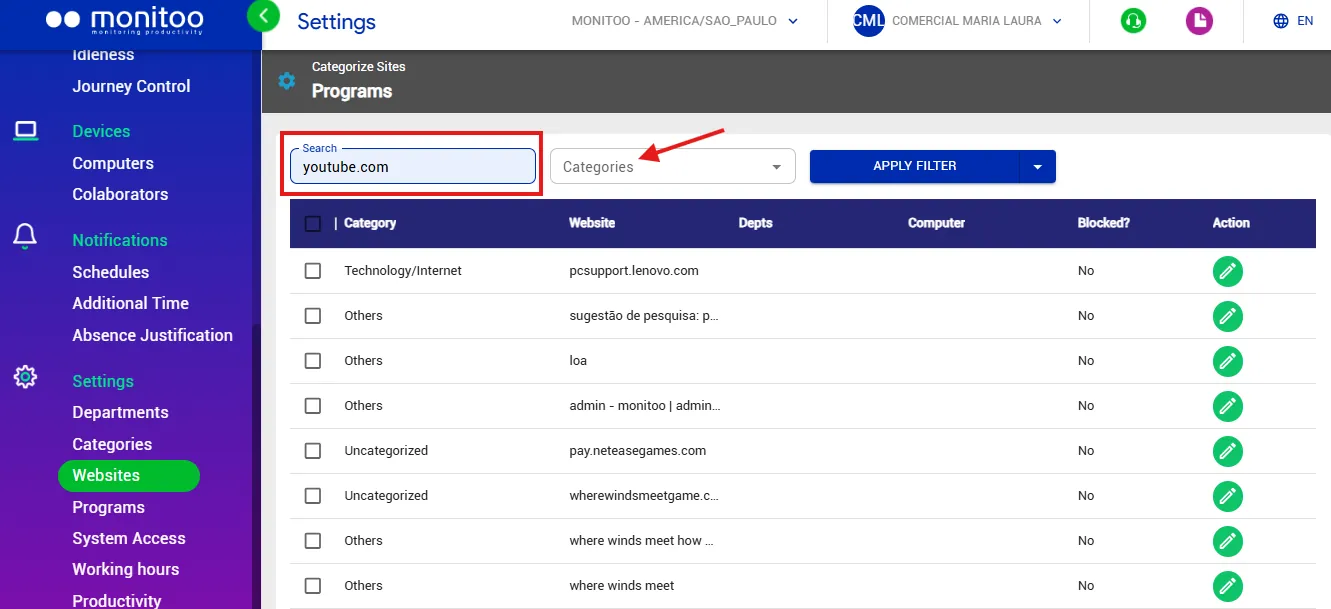
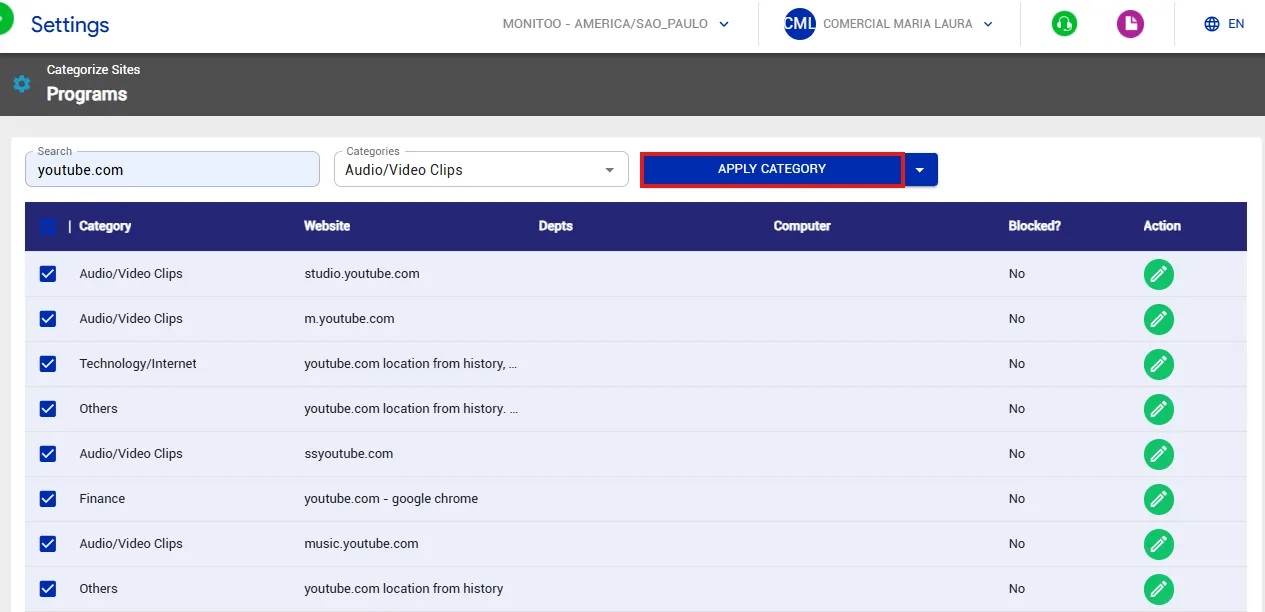
Use the search bar by typing part of the address you want; or filter by category and click Apply Filter to display only the matching results.
To change the category of a website:
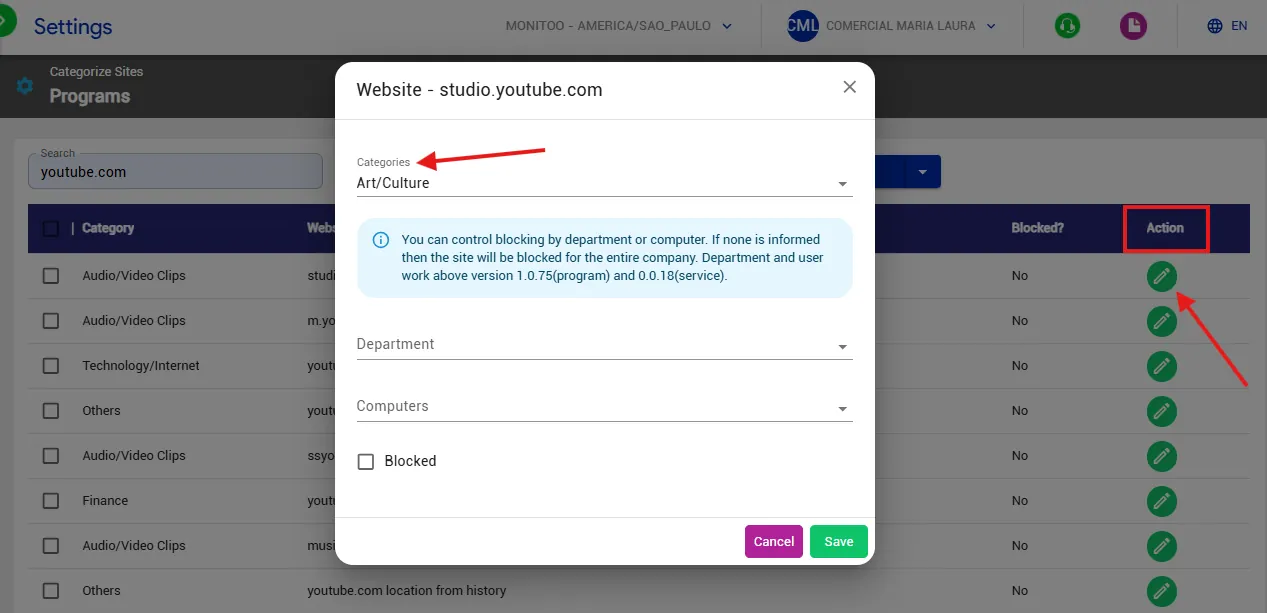
Locate the desired site in the list (or use the search bar), click the edit icon in the Actions column, choose the new category (default or custom), and click Save to apply the change.
How to change categories in bulk:
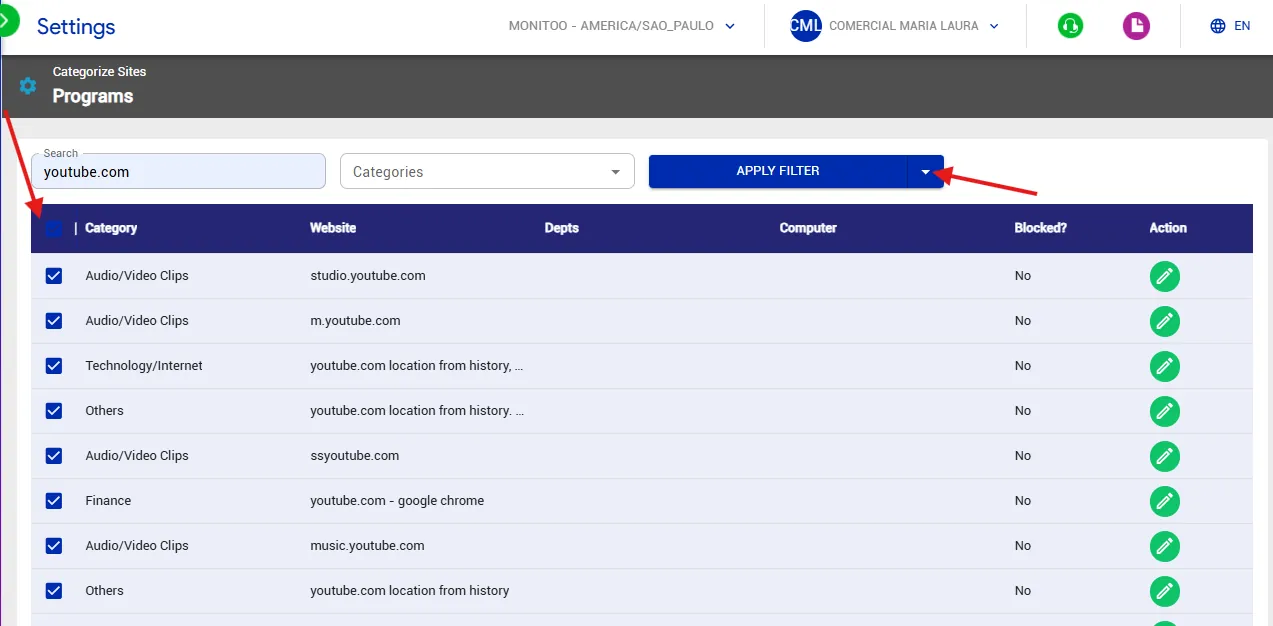
To speed up organization, you can edit the category of multiple sites at once:
Select the desired websites by checking the boxes next to each one.
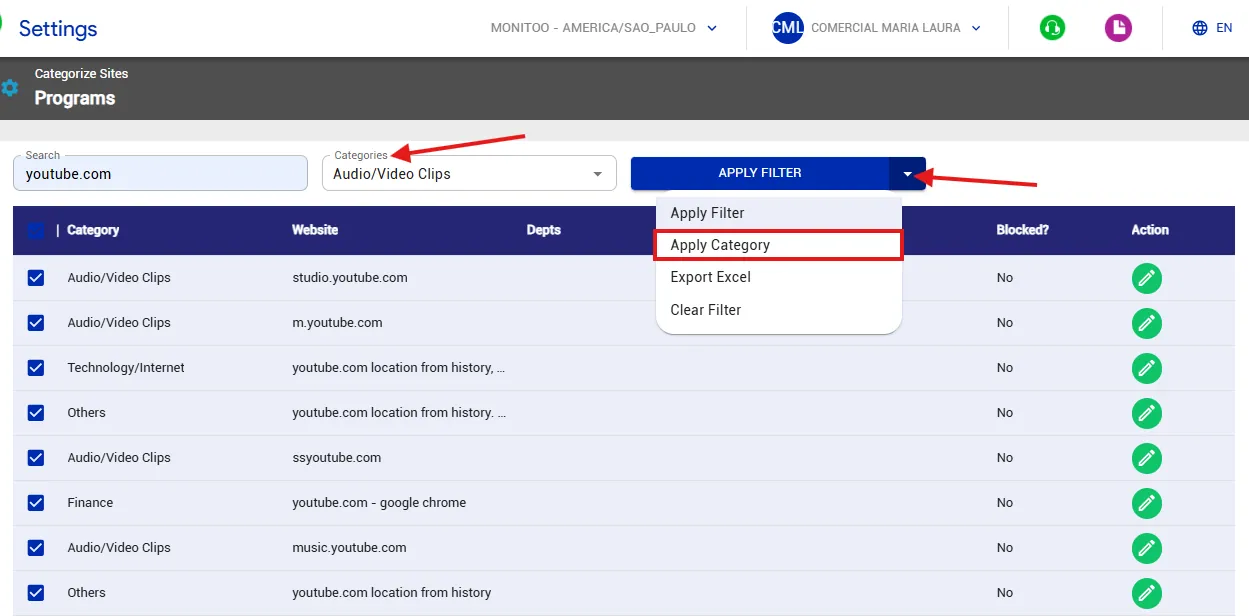
Click Change Category to apply the update in bulk.
Choose the desired category and confirm to apply the change to all selected websites.
How to Block Websites
You can block access to specific websites and domains for:
Individual computers; Entire departments; All devices in the organization
To do this:
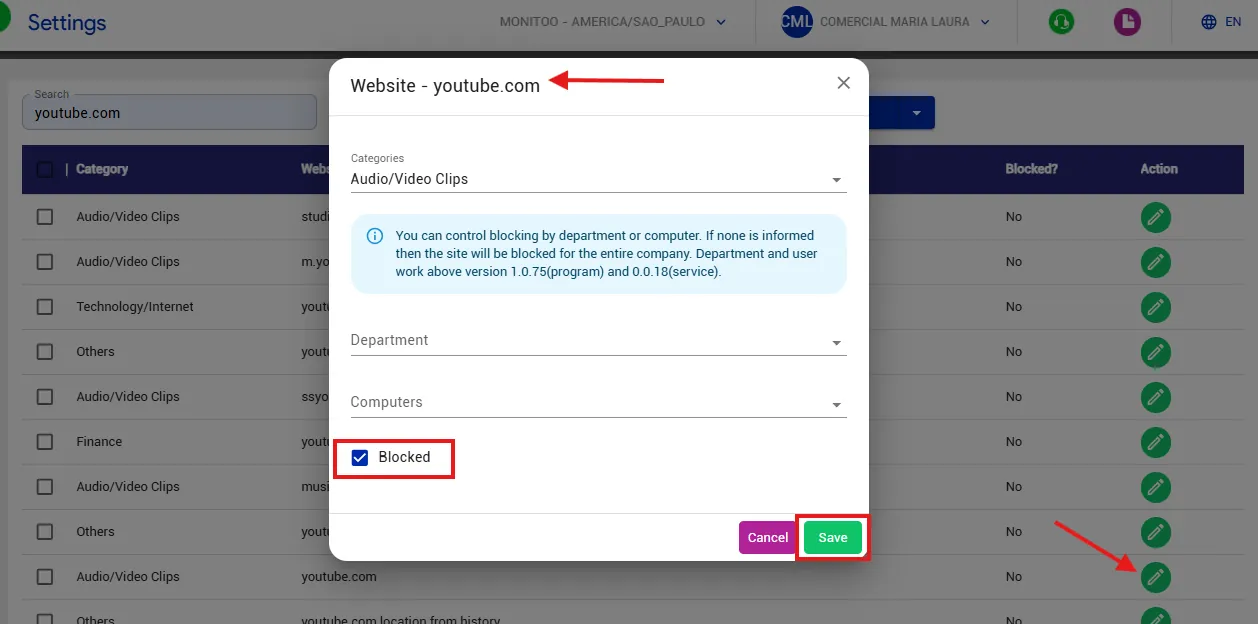
Locate the website you want to block and click the edit icon under Actions. Select the computers and/or departments that should not have access to that website.
If none are selected, the block will be applied to all computers in the company.
Enable the Blocked option and click Save.
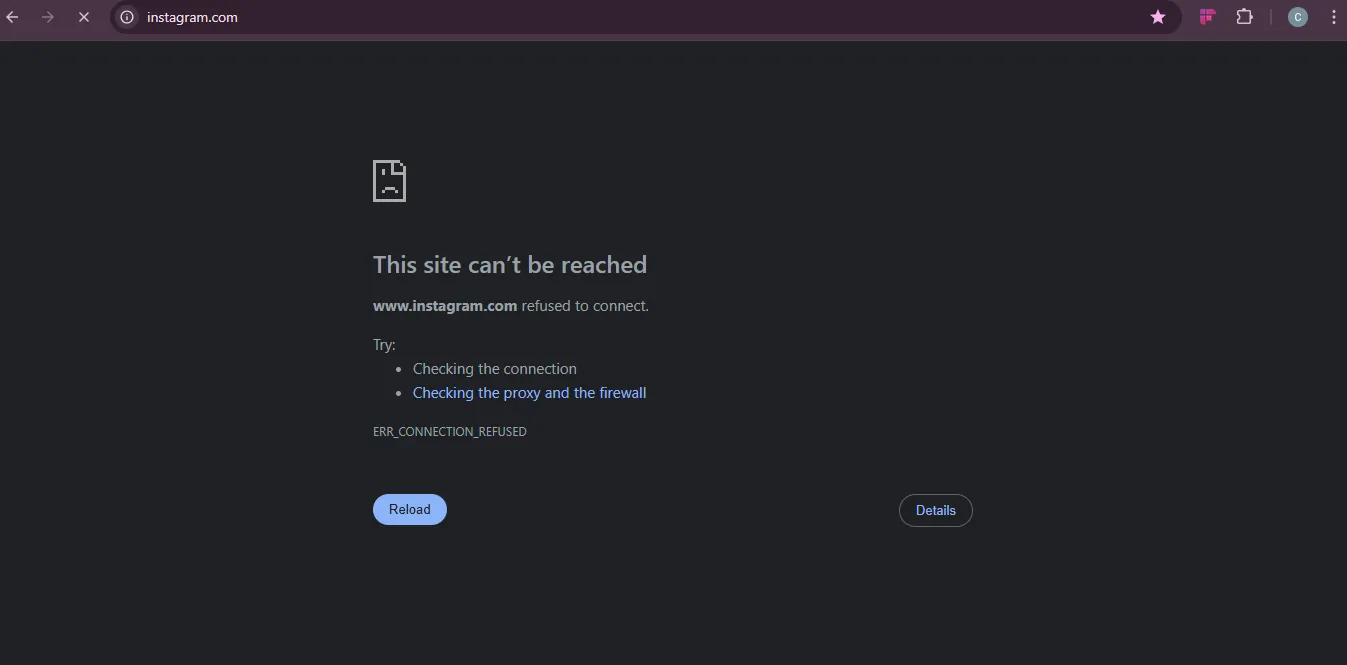
Computers affected by the block will display an error message in the browser whenever the user tries to access the restricted website.
Great! Thanks for your feedback.
Tell our team what was missing: contact support on WhatsApp.
