



In this submenu, you will find a complete list of all programs that have been used on the computers registered in the organization. You can change the category of any program to another default platform category or to a custom category you have created. Additionally, you can mark one or more programs as Non-Idle.
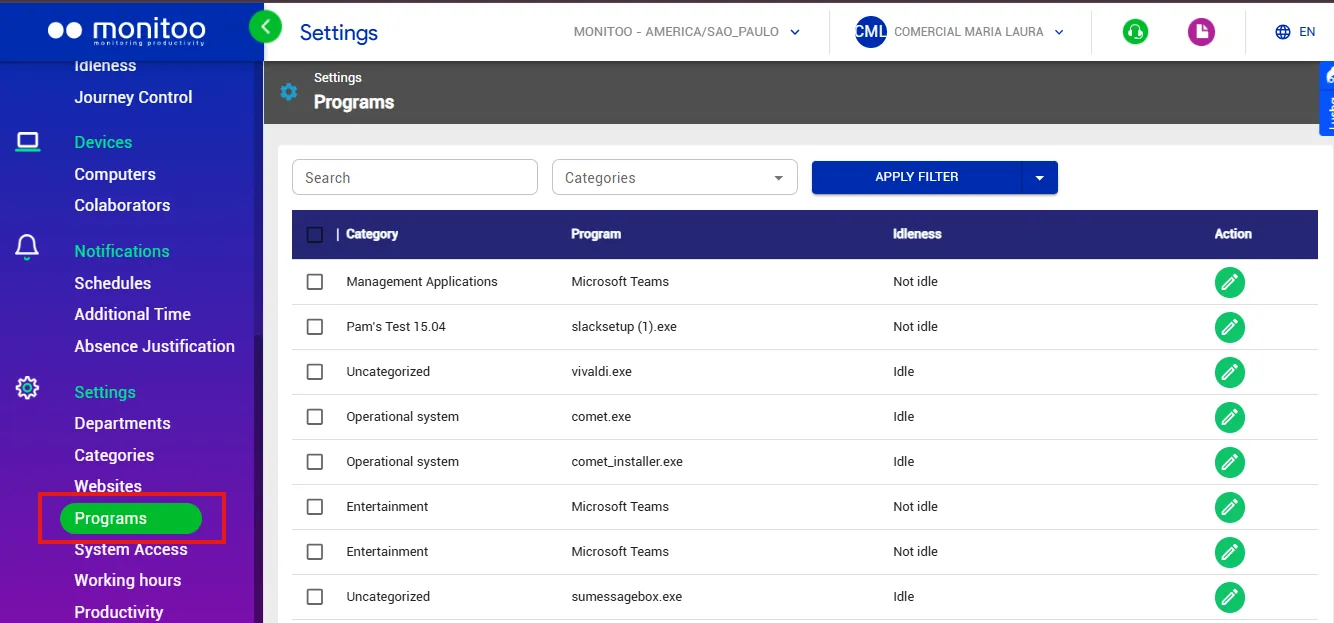
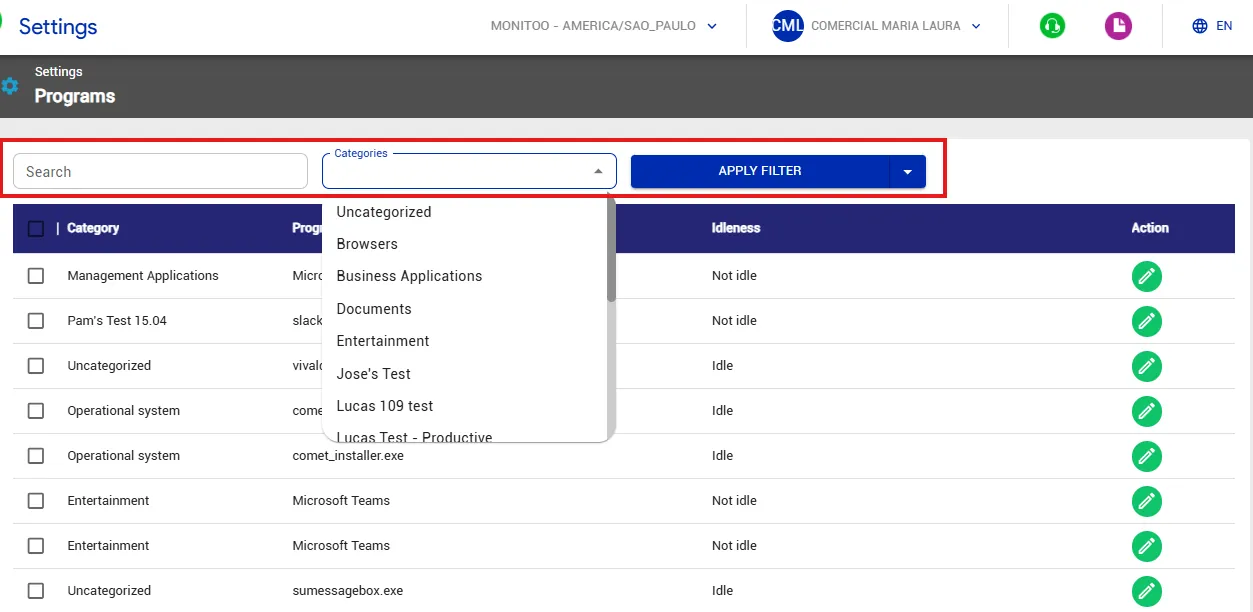
To filter the programs, you can search directly in the search field or filter them by category. Click on Apply Filter to narrow the results.
Changing the category of programs
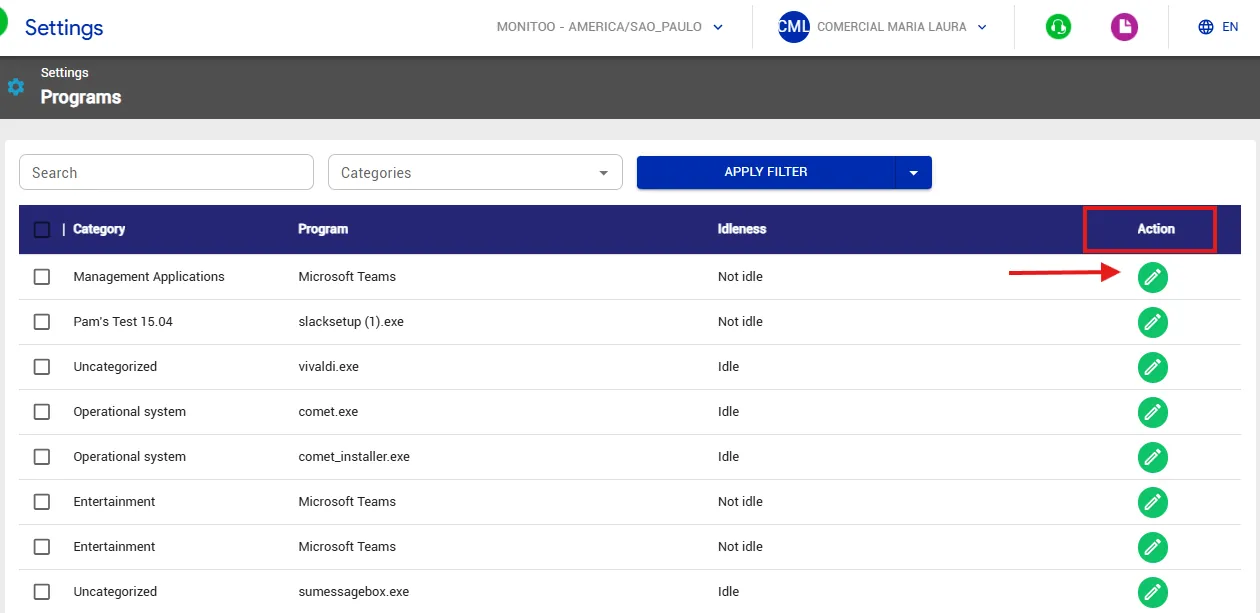
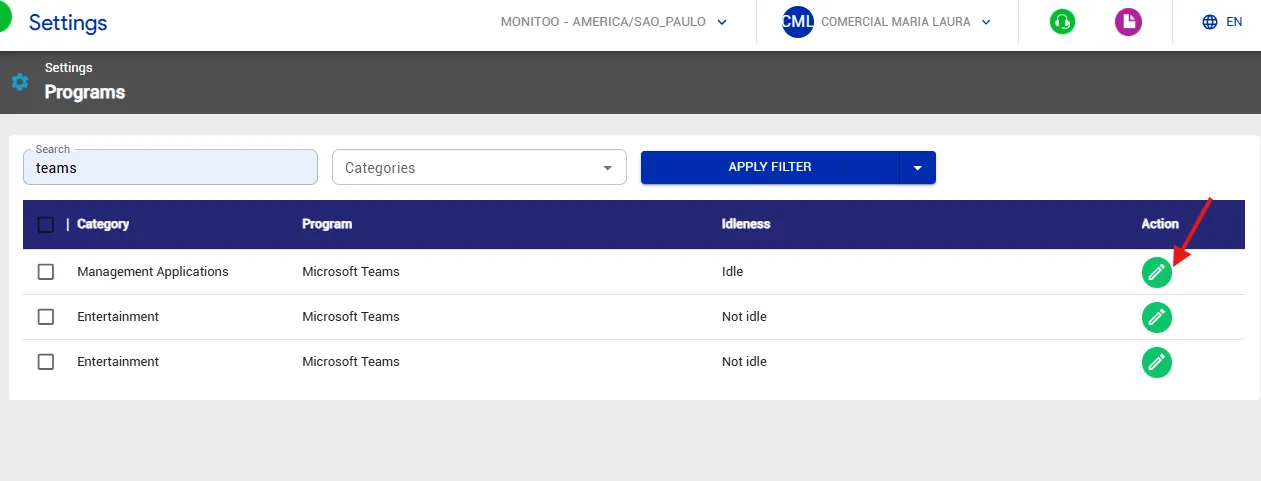
If you want to change the category of a specific program, click the edit icon in the Actions column.
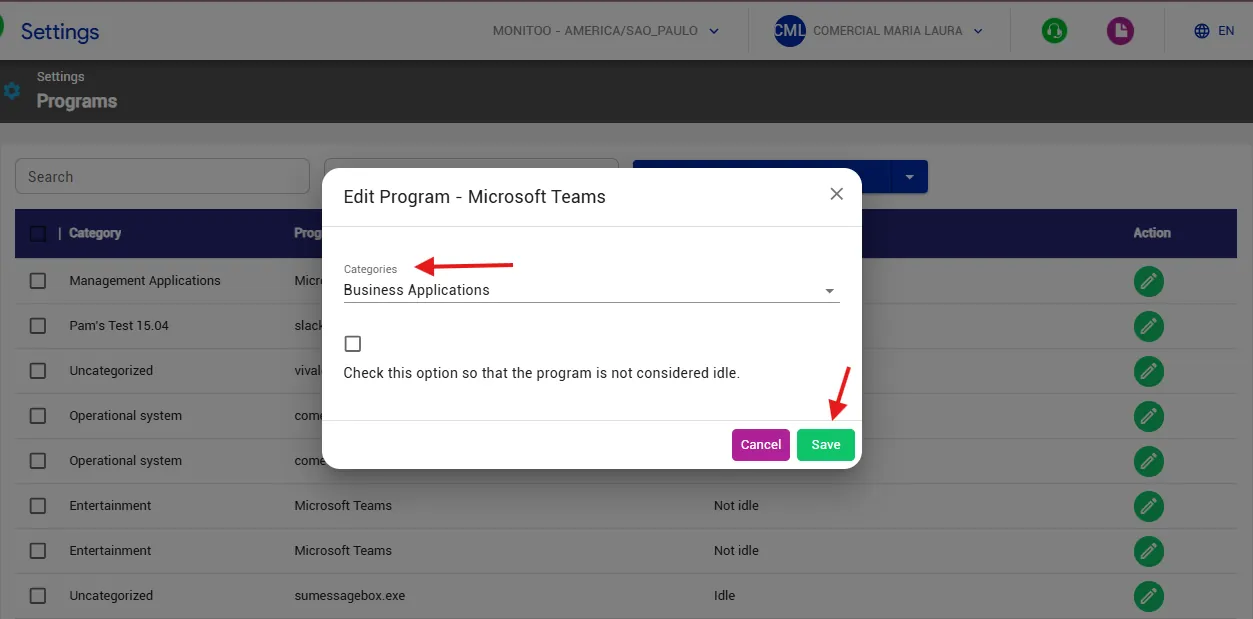
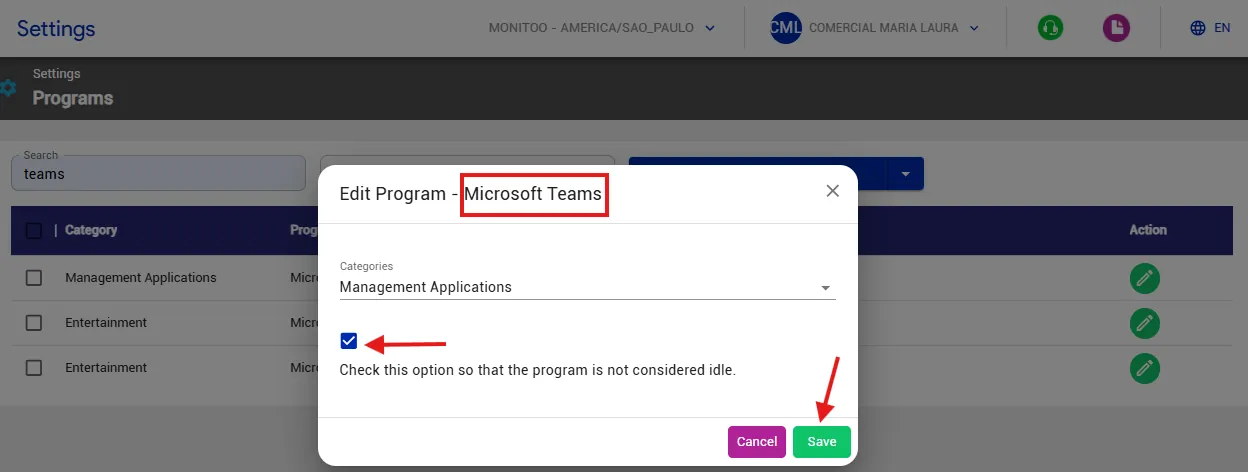
Change the category to the one you prefer and click Save.
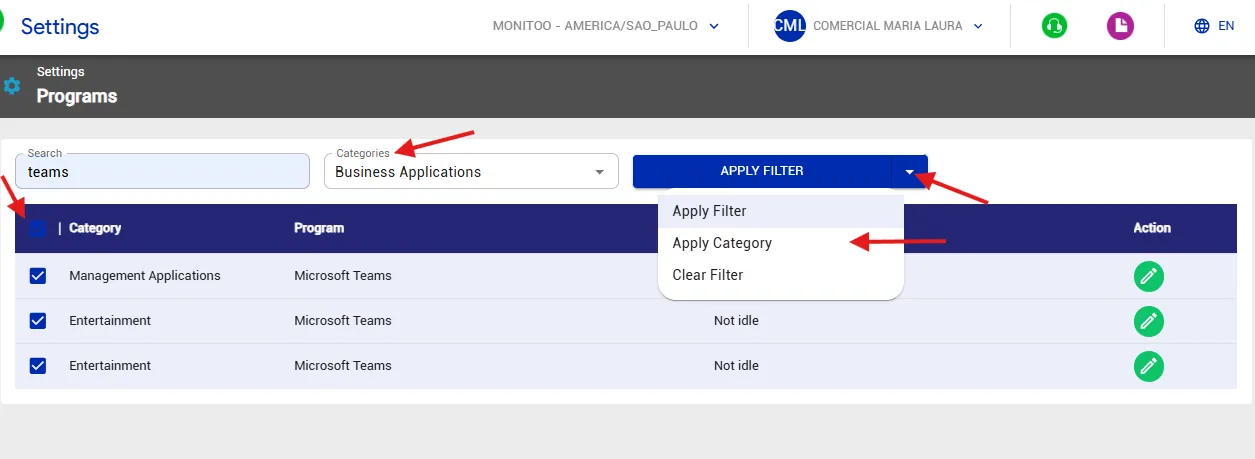
You can change categories in bulk by searching for the desired programs, selecting the new category, and clicking “Apply Category”.
This process allows you to update multiple items at once, as shown in the example below:
Setting Programs as Non-Idle
When you mark a program as Non-Idle, its records will not follow the standard idle rule (which counts idleness after a period without mouse or keyboard interaction).
Once marked as Non-Idle, no activity recorded within that program will ever be considered idle.
This feature is commonly used for online meeting and video conferencing tools such as Zoom or Microsoft Teams.
Even if the user is in these applications without interacting with the mouse or keyboard—because they are simply watching the meeting—idle time will not be counted.
To set a program as Non-Idle, locate it in the list and click the edit icon in the Actions column.
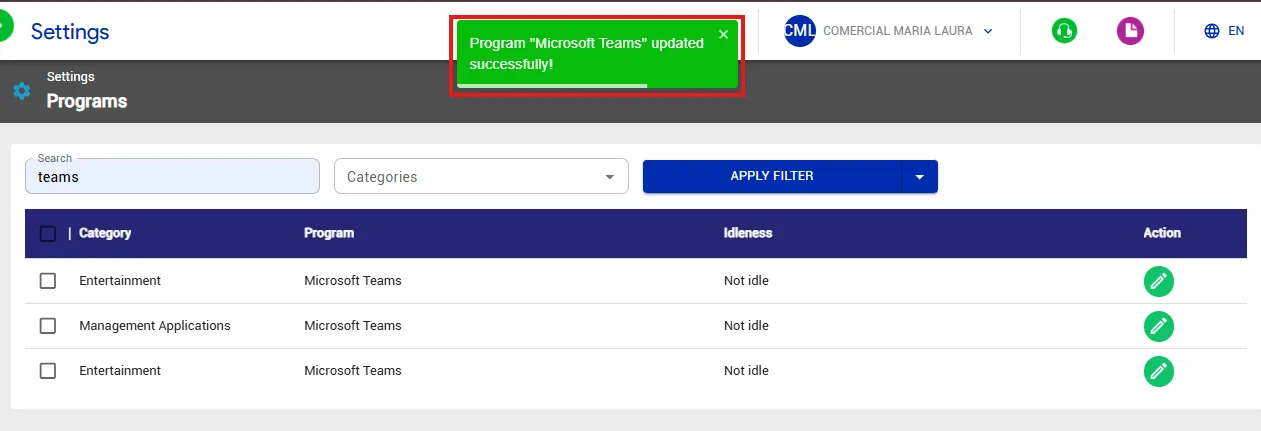
Enable the option and click Save.
Great! Thanks for your feedback.
Tell our team what was missing: contact support on WhatsApp.
